
Live Player
In the Live Player, you can route whatever you want, like an external source (iPod, radio, instrument, another computer) or an internal source (iTunes, Spotify, SoundCloud).
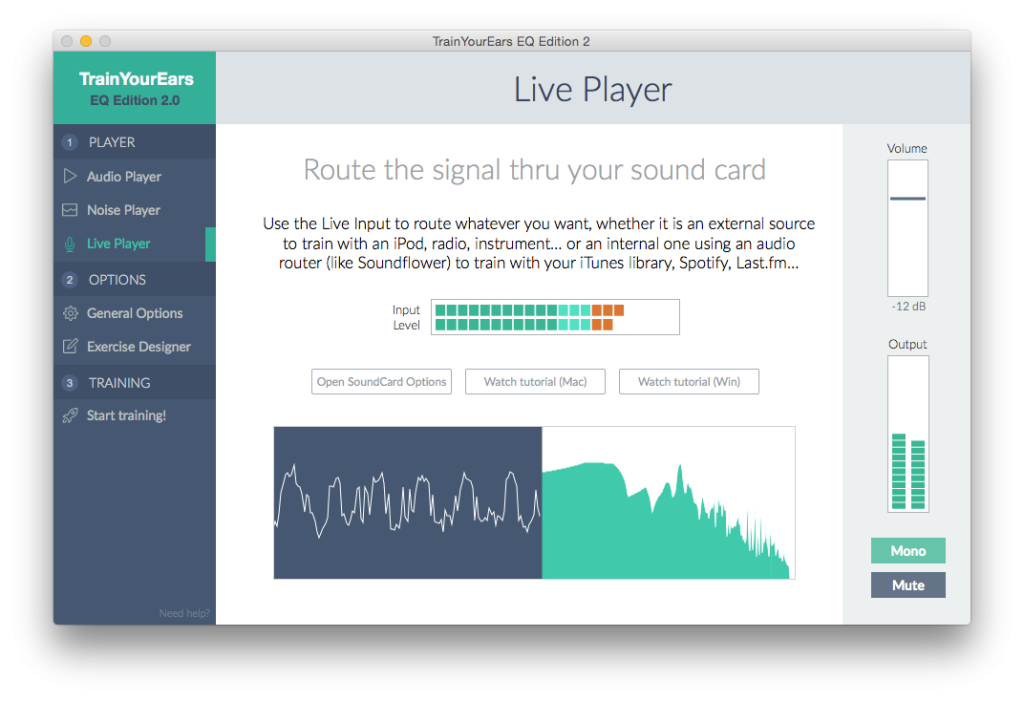
External Source
- Connect the signal you want to use to the inputs of your audio interface.
- Choose BlackHole 2ch as input in TrainYourEars.
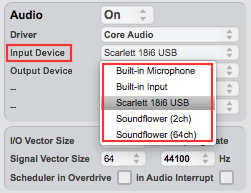
- Finally, choose the input channels you are using to route the signal.
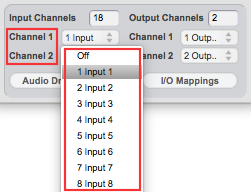
Internal Source
In order to route audio from other programs running inside your computer, you need an internal router. We use BlackHole in OSX and VB-CABLE in Windows. Both are free and work really well.
OSX Internal Routing with BlackHole
First, install BlackHole.
- Download BlackHole to your computer.
- Open the
dmgfile. - Launch the
BlackHole.pkgto install it. - Agree to the License terms and install it.
- Restart your computer.
Now, open TrainYourEars and route the signal.
- Choose BlackHole 2ch as input in TrainYourEars.
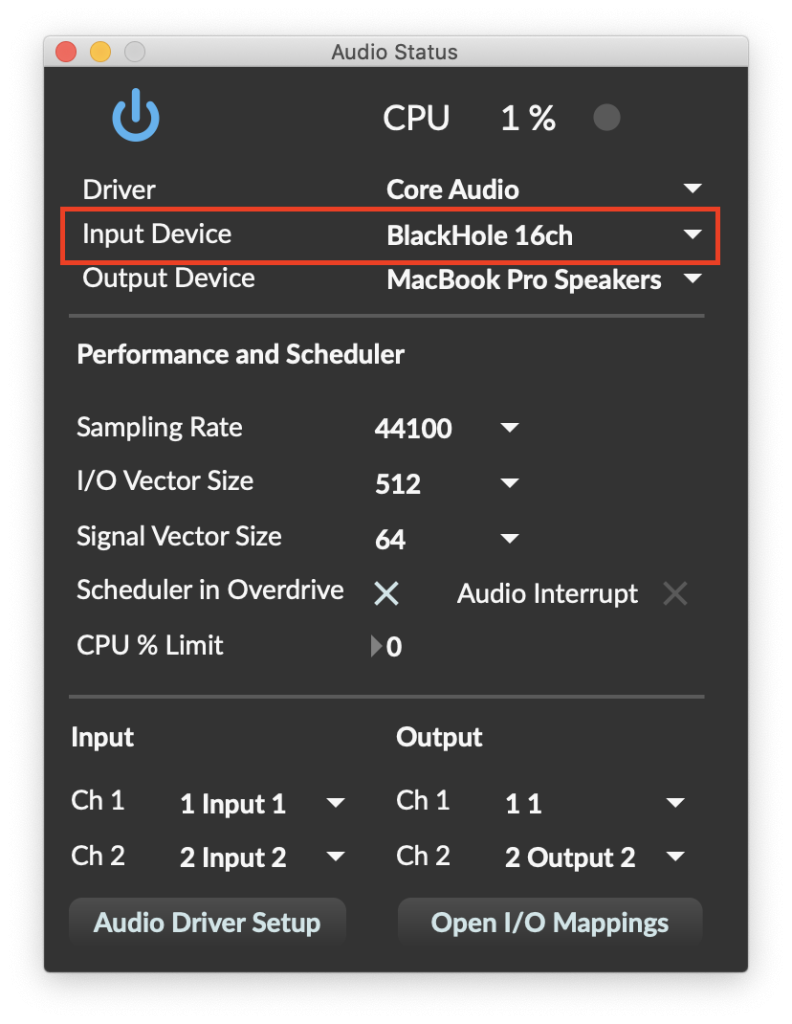
IMPORTANT! Make sure that after changing the settings, the audio engine is turned on (blue). If the ON-OFF button is not blue, click until it turns blue.
- Alt+click on the volume icon of the menu bar.
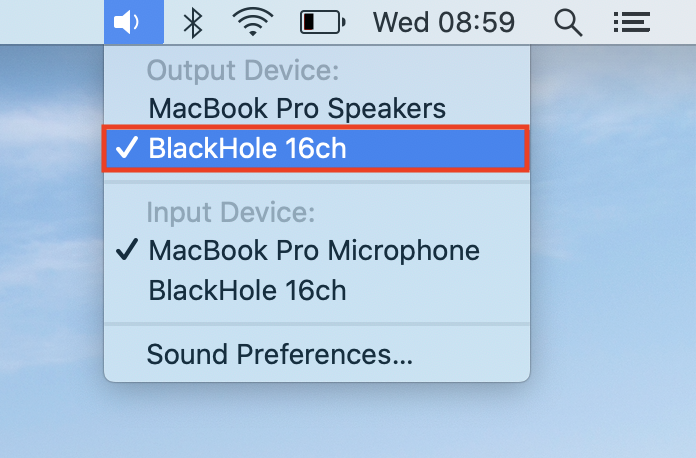
- Choose BlackHole 2ch as output in your system.
- Now any signal played in your computer should be routed to TrainYourEars.
Once you have finished your training, remember to select your normal output again.
If you hear noises try switching to ad_portaudio Core Audio driver instead. In certain computers, it works better than Core Audio.
Windows Internal Routing with VB CABLE
First, install VB-CABLE.
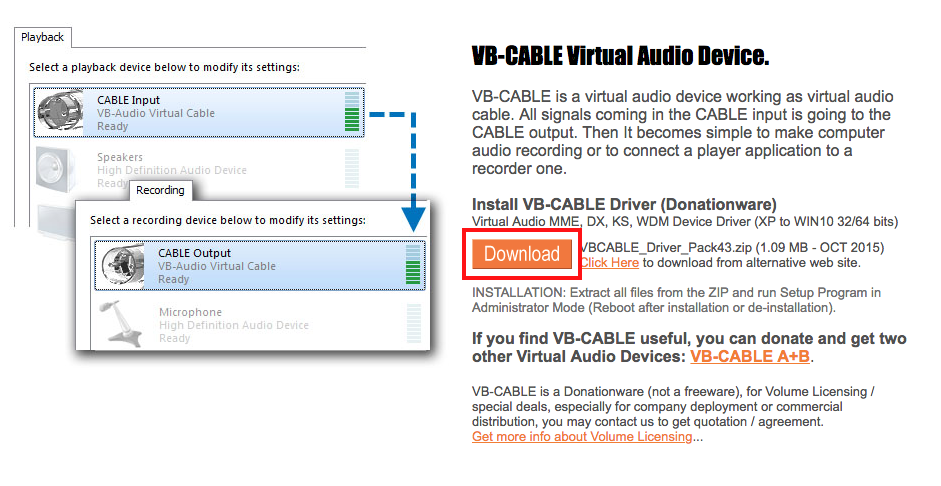
- Download VB-Cable to your computer. Scroll down until you see the orange DOWNLOAD button:
- Unzip the
zipfile. - Right-click on
VBCABLE_Setup_x64.exeand chooseRun as Administrator.
If your system has only 32bits, run VBCABLE_Setup.exe instead.
- Click on
Install Driver. - Restart your system.
Now, open TrainYourEars and route the signal.
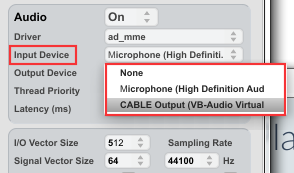
- Choose
CABLE Output (VB-Audio Virtual Cable)as input in TrainYourEars.
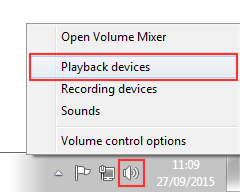
- Right-click on the volume icon and choose
Playback Devices
- Click on
Cable Inputand then onSet Default.
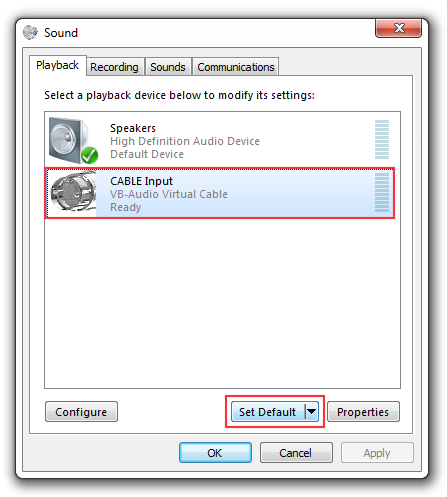
- Now any signal played in your computer should be routed to TrainYourEars.
Once you have finished your training, remember to select your normal output again.